
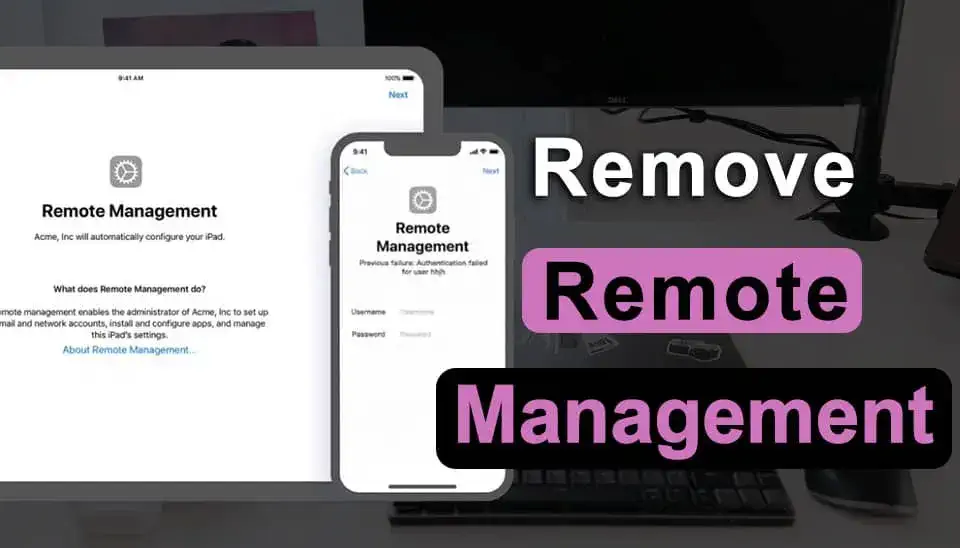
There are some iOS users recently ran into the “Remote Management” screen on an iPad or iPhone, and had no idea what they were supposed to do at first.

The iPad or iPhone had been reset, so some users assumed it would just start normally. Instead, during setup, it connected to Wi-Fi and showed a Remote Management screen asking to enroll the device with an organization. If you’re seeing the same thing, here’s what I learned about removing Remote Management from an iPad include using iPhone passcode unlocker.
What Does “Remote Management” Actually Mean?
Remote Management usually means the iPad is enrolled in an organization’s Mobile Device Management (MDM) system. Schools and companies use MDM to control things like app installation, account settings, Safari access, passcode requirements, and other device restrictions. Apple also allows administrators to remotely configure and manage supervised iPads.
That’s why simply factory resetting the iPad doesn’t necessarily solve the problem. In fact, this is one of the most confusing parts. You can erase the iPad completely, go through the setup process again, connect it to Wi-Fi… and the Remote Management screen can still come back.
Method 1: Check VPN & Device Management
If you can already access the iPad’s Home Screen, this is the first thing I’d check. Go to: Settings > General > VPN & Device Management. Here you can see whether there is a configuration profile installed on the iPad. If the profile can be removed, tap it and select Remove Profile. You may need to enter the iPad’s passcode. Apple says that removing a configuration profile also removes the settings, apps, and data associated with that profile.
However, there is an important catch. Not every management profile can be removed by the user. Some profiles are controlled by an organization and can only be removed by an administrator. So if you don’t see a Remove Profile option, don’t assume you’ve missed something in Settings.
Method 2: Ask the Organization to Remove
If the iPad used to belong to a school or company, you can try contacting them first. In most cases, they can remove the device from their MDM system and take it out of Apple Business Manager or Apple School Manager. Once that’s done, reset the iPad and go through the setup process again. If everything was removed properly, the Remote Management screen shouldn’t come back.
This is especially important if you bought a used iPad. There are quite a few people buy used iPads from marketplaces, only to discover the Remote Management screen after connecting to Wi-Fi. In similar Reddit discussions, the most common advice is to contact the original organization or return the device rather than trying random “MDM bypass” methods.
Method 3: Use a Third-Party iPhone/iPad Unlock Tool
This is the option you can looking into when the normal methods weren’t available. One tool came across is MagFone iPhone Unlocker. Despite the name, it is designed to handle several iPhone and iPad lock-related situations, including certain MDM-related scenarios.
The basic idea is pretty straightforward: instead of going through a complicated series of settings or trying random configuration tricks, you connect the iPad to a computer and let the software guide you through the available unlocking process.
Step 1: Launch the MagFone iPhone Unlocker after installation and connect your iPad to the computer using a USB cable, look for the Remove MDM option in MagFone iPhone Unlocker.
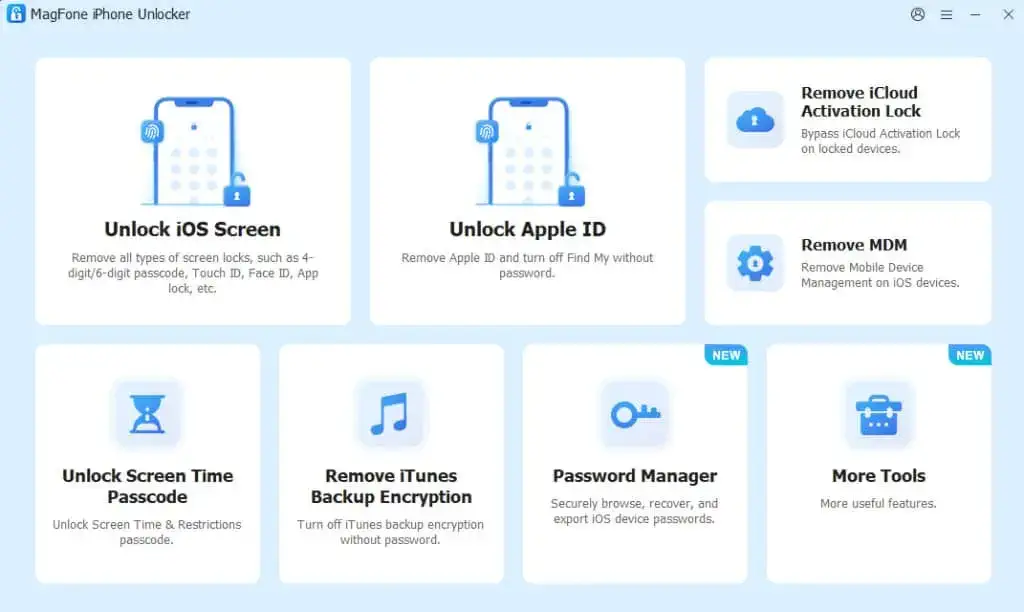
Step 2: Follow the instructions shown in MagFone iPhone Unlocker and click the button to start removing the MDM lock. Once MagFone finishes, check whether the MDM restrictions and Remote Management screen have been removed.

Note: Don’t disconnect the iPad while the process is running. Depending on the device and its software version, the process may take several minutes.
What if I bought the iPad second-hand?
This is where things get frustrating. If the seller said the iPad was reset but you still see Remote Management during setup, it’s probably still linked to the previous owner’s company or school.
Many users found out that resetting the iPad doesn’t always remove the management profile. So before spending money on an MDM removal service, it is better to contact the seller first. Ask them to have the previous company or school release the iPad from their management system.
If they refuse or disappear, I’d seriously consider requesting a refund. Otherwise, you could end up with an iPad that looks perfectly fine but can’t be properly activated for personal use.
What about third-party MDM removal tools?
This is probably the part most people are actually searching for. There are third-party tools like MagFone that claim to remove or bypass MDM restrictions from iPhones and iPads. Some tools might work, but it really depends on the iPad you’re using and how it’s managed.
Some solutions only bypass the management temporarily. If the iPad is erased or restored later, the Remote Management screen may return. That’s something we noticed repeatedly when reading through user experiences: a method appearing to work doesn’t necessarily mean the device has actually been released from the organization’s management system.

